Views / 6 min read
Expression: shape each step
Control eight note properties and let each one follow Notes or use its own restart points.
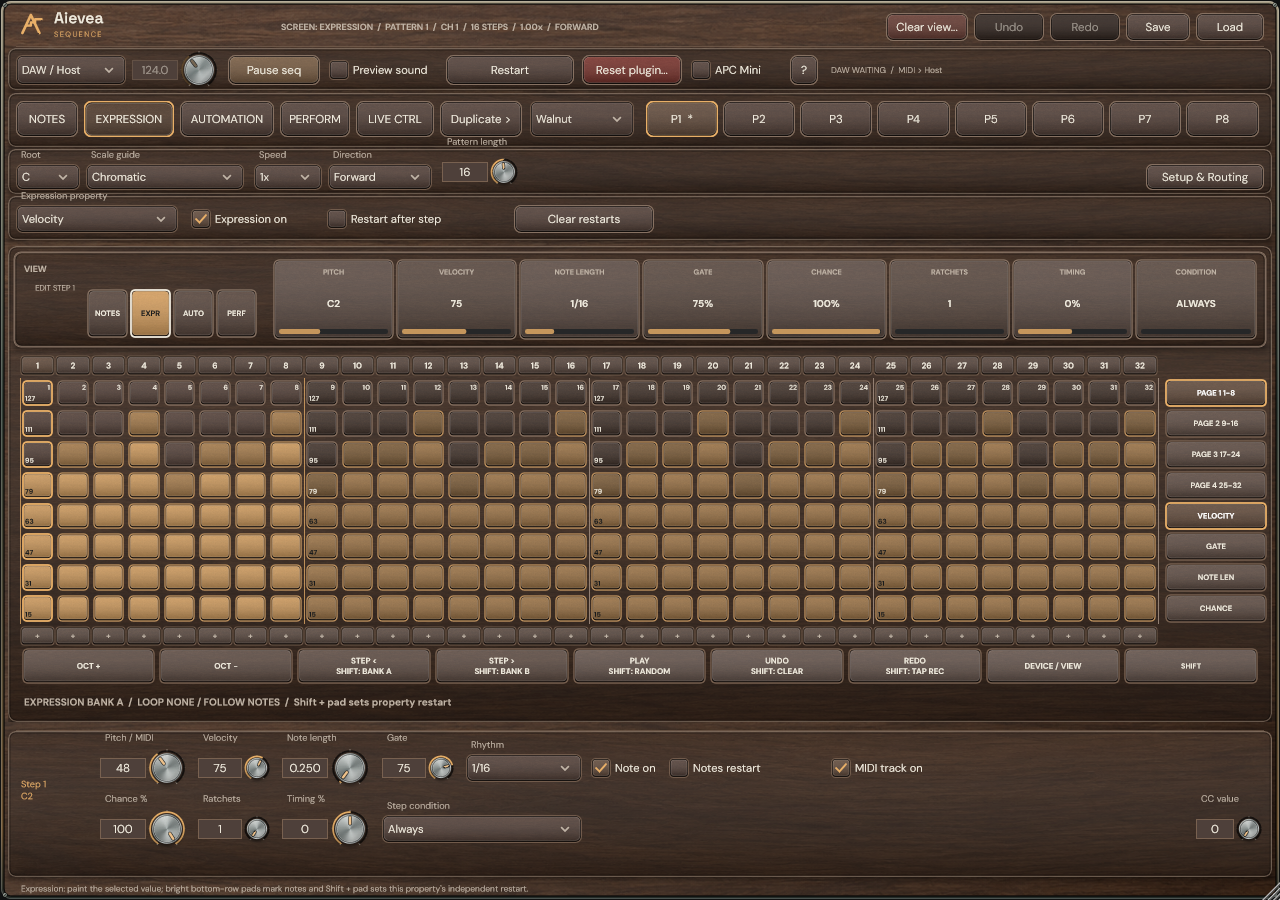
Choose a property
Choose Velocity, Gate, Note length, Chance, Pitch, Ratchets, Timing or Condition from the property selector. Paint its bars, or select a numbered step and use the inspector for precision.
Velocity changes note strength. Gate scales note length. Chance affects whether a note plays, and Ratchets add retriggers. Positive Timing delays the note by up to 45% of its step; negative values remain stored but play at the step boundary in this preview. Condition can depend on the previous result or the phrase cycle. Pitch uses the selected property’s pitch values.
Bypass and restore
Switch Expression on off to bypass only the chosen property. Its values and restart points stay stored in the pattern, presets and project state. Turn it on again to hear the stored expression.
Bypassed Velocity uses 100, Gate 75%, Chance 100%, Ratchets one trigger, Timing zero and Condition Always. Pitch follows the Notes cursor, and Note length follows Rhythm.
Give a property its own loop
- Select a property and add a restart with its + / R row or Restart after step. That marker belongs only to this property.
- For example, set Notes to restart after step 8 and Velocity after step 13. Velocity continues through steps 9–13 while Notes starts its next cycle.
- Use Clear restarts to return this property to Follow Notes. The top Clear view... button asks for a second click, then resets the selected property’s values and restart. The Clear view command in Setup & Routing runs immediately. Undo restores either edit.