Views / 5 min read
Perform: work with patterns
Launch and copy eight pattern slots, make variations, and return to Notes to record a take.
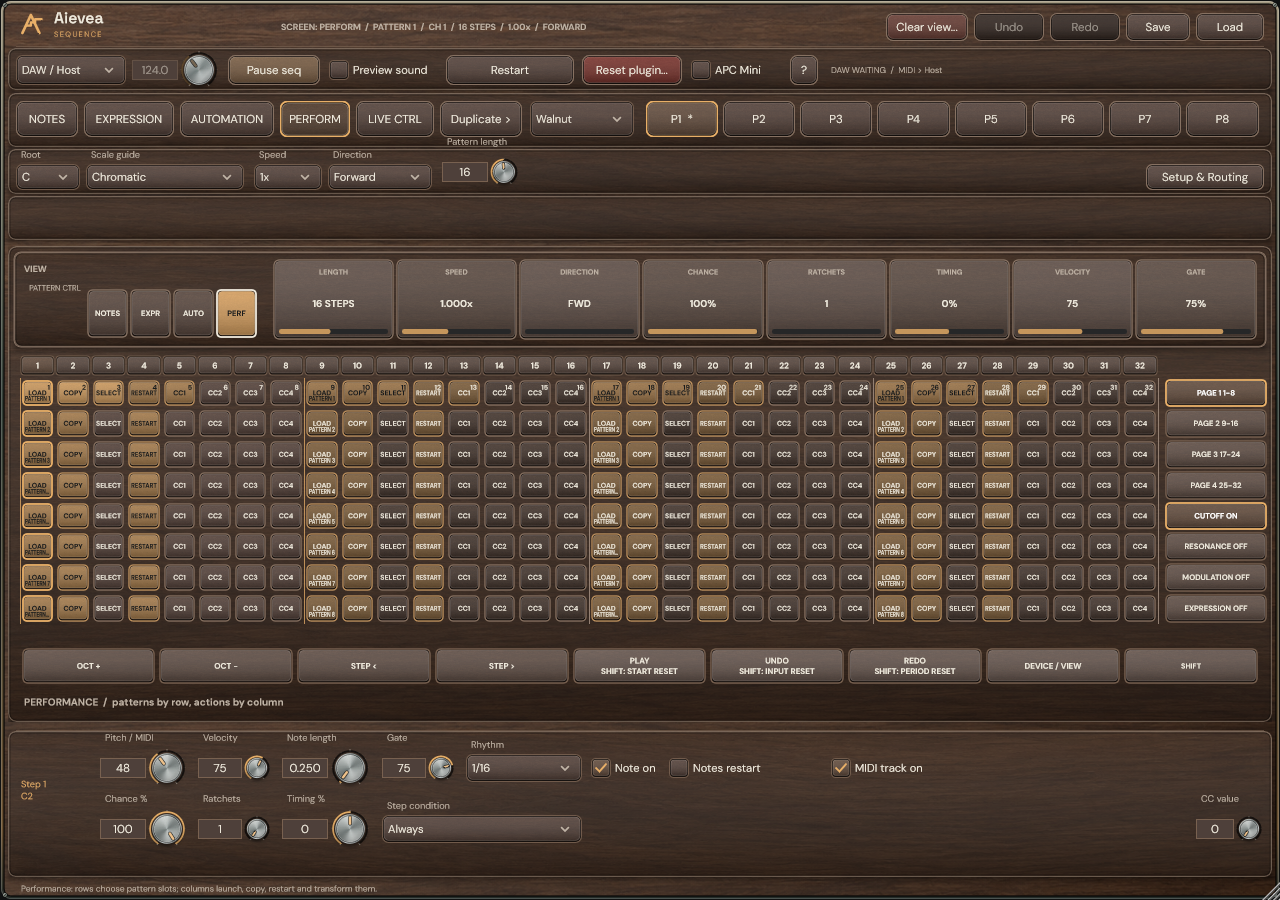
Use the pattern bank
The eight slots store complete notes, timing, expression and automation. Select P1–P8 with your mouse. Duplicate > copies the current pattern into the next slot; check the destination before replacing an idea.
The Perform grid offers pattern loading, copying and phase restarts. Undo and Redo track complete edits so you can return to an earlier variation.
Transform the phrase
Euclid distributes pulses across the active Pattern length. Randomize uses the selected root and scale and the pitch rows visible in Notes. Rotate moves stored steps, including their note, expression and CC values. Scale fit moves active notes to the chosen scale.
Clear view uses the current view: Notes clears its triggers, Expression defaults its selected property, and Automation clears its selected lane. In Perform it defaults the active pattern’s steps and disables its CC lanes. The top Clear view... and Reset plugin... buttons ask for a second click within 2.5 seconds; Reset plugin resets every slot and restores factory settings. Clear commands in Setup & Routing and the Shift layer run immediately and can be undone. Save a preset before a large change.
Record in Notes
- Return to Notes and set OCTAVE and SNAP in the recording strip. Enable COUNT-IN for a one-pattern lead-in, then REC ARM.
- With an APC Mini Mk2 connected, play its pads while the transport runs. Presses capture the note; releases write its note length. METRONOME provides an optional click.
- UNDO TAKE restores the pre-take Notes pattern. CLEAR TAKE restores the earlier notes at the steps changed by the take. Disarm recording when finished.